Motion Light Tutorial
There are several key aspects on Motion Light.
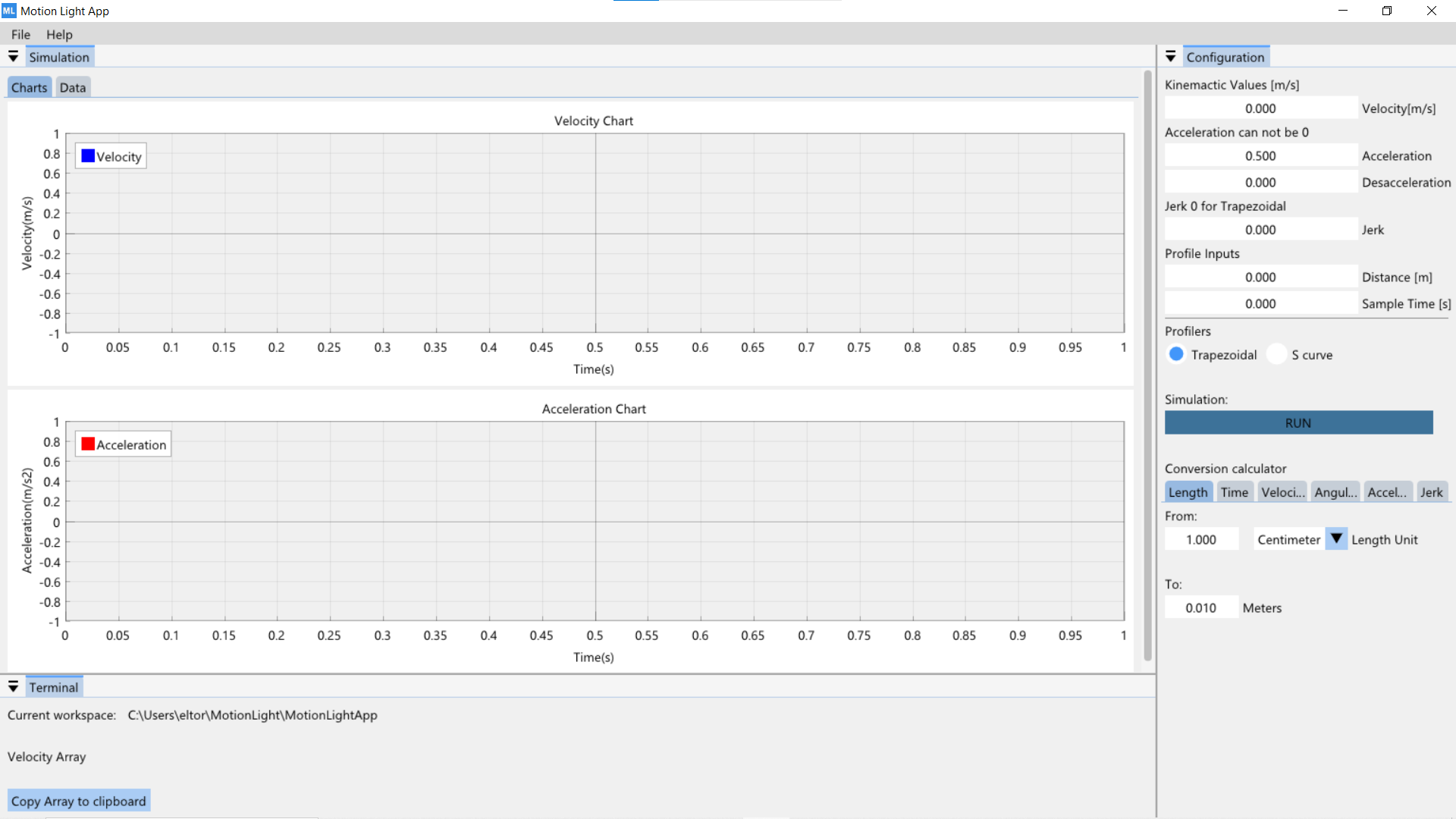
These aspects are:
- Configuration
- Simulation
motion.light.txtfile- Terminal
In this tutorial, you will learn about each aspect and how to use them in MotionLight.
Configuration
Kinematic parameters
The heart of motion profiles lies in the system´s kinematic parameters. With these parameters, the profiles can start perfoming calculations to determinate the velocity of your system along a desired trayectory.
You need to enter your system´s kinematic parameters in the configuration window.
The parameters are:
| Parameter | Unit | Description |
|---|---|---|
Velocity | m/s | The maximum velocity for the trayectory |
Acceleration | m/s2 | The maximum accleration for the trayectory |
Desacceleration | m/s2 | The maximum desacceleration for the trayectory |
Jerk | m/s3 | Jerk value for the profile |
Distance | m | The amount of distance that your system will travel |
Sample time | s | How often the profile will make the calculations |
It´s important to consider that these paremeters are not the maximum achievable values for your system. They represent the maximum values for a specific trayectory.
For example, for a given trayectory, you may want your maximum velocity be only a fraction of your system´s maximun velocity.
For the trapezoidal profile, Jerk is equal to zero. For S-Curve the jerk needs to have a value.
Also, in most cases the acceleration and desacceleration can be equal.
You can enter these parameters values in the configuration window.
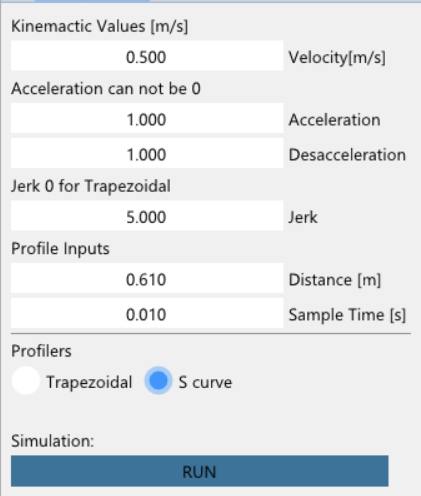
Motion profiles
In the same configuration window. You must select what profiler you will use.

The choice of profiler will affect the results. If you're not familiar with motion profilers, please check outWhat is a motion profile?
Unit conversion
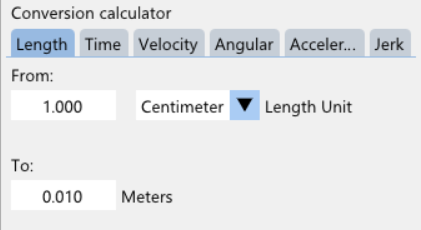
Are you having trouble with the MotionLight´s standard units? Don´t worry! You can use the MotionLight´s unit conversion tool in the configuration window.
The conversion calculator allows you to convert various units to standard units. Saving time and increasing productivity.
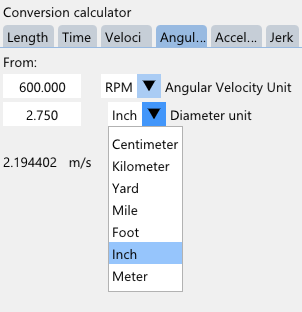
One helpful feature of the conversion calculator is the ability to convert angular velocity to linear velocity. This is useful when you need to convert motor velocity (usually in RPM) to a linear velocity.
Running simulation
Once you have entered all the parameters, you can run the simulation by clicking the RUN button.

You will see the results in the simulation and terminal window. If the result is not satisfactory, remember you can modify the parameters. It´s a simulation, so don´t worry 😉.
Simulation
In the simulation window, you will find the results of your simulation.
The simulation window is divided into two tabs.
Charts
In this tab, you will see two graphs of your profile.
- Velocity vs time
- Acceleration vs time
These charts are helpful visual tool because they allow you to modify the parameters while comparing the chart to the desired system behavior.
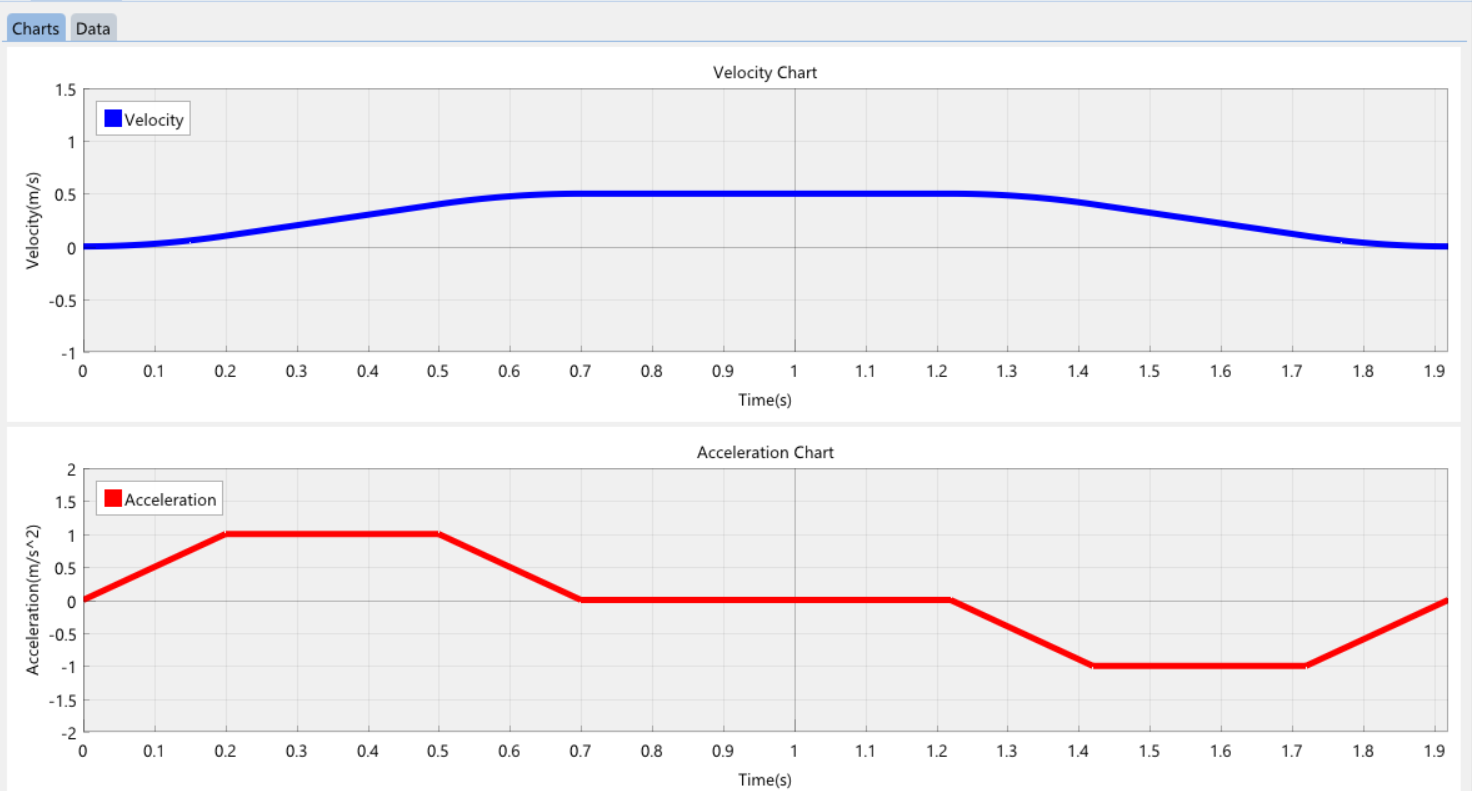
Using charts is the most efficient way to fine-tune your profile. Don´t like the behavior? Change some values, run the simulation, and see how it affects the chart.
Data
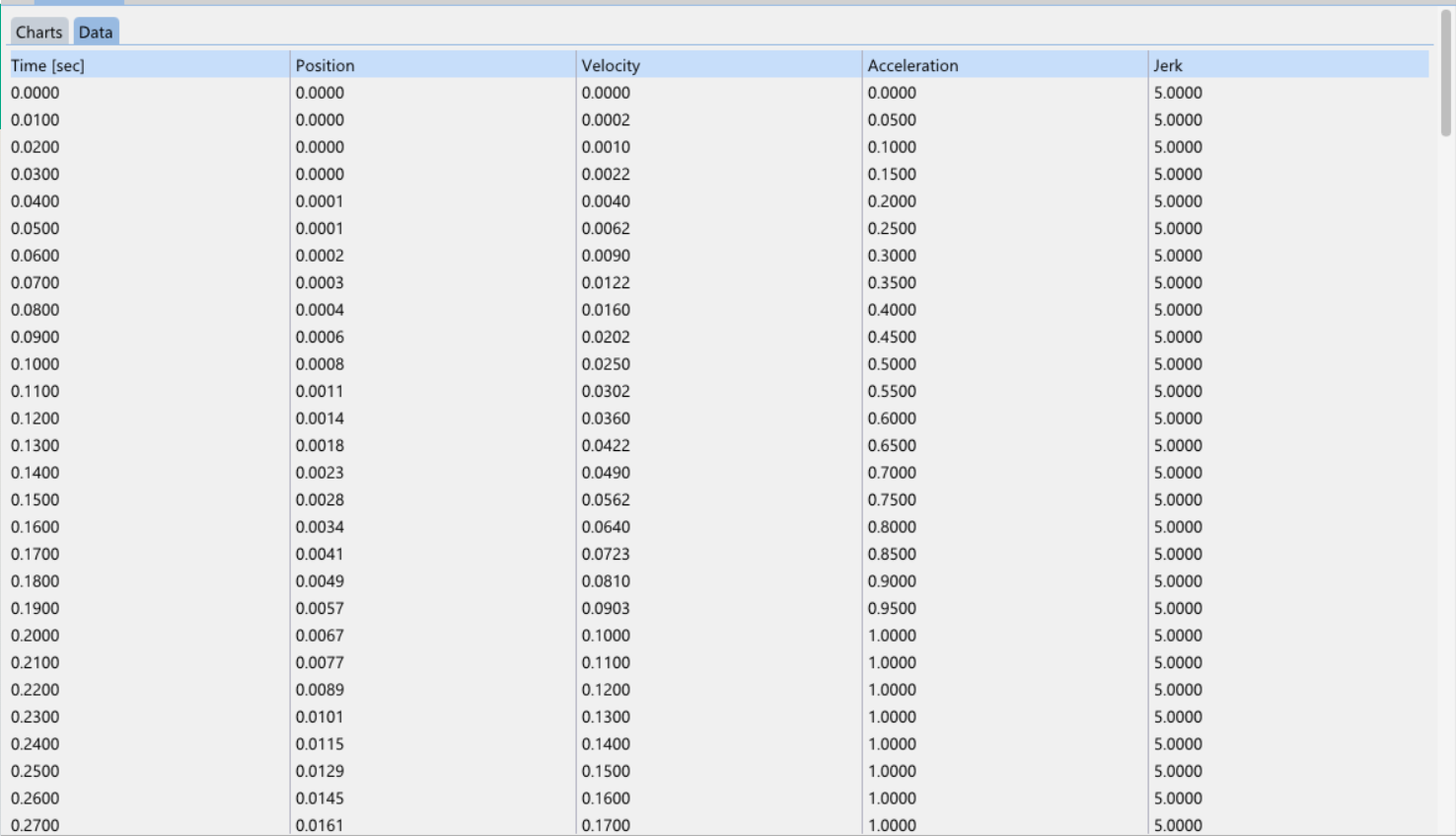
In this tab, you will find all the simulation output in a data table. This tool is useful as it provides specific values.
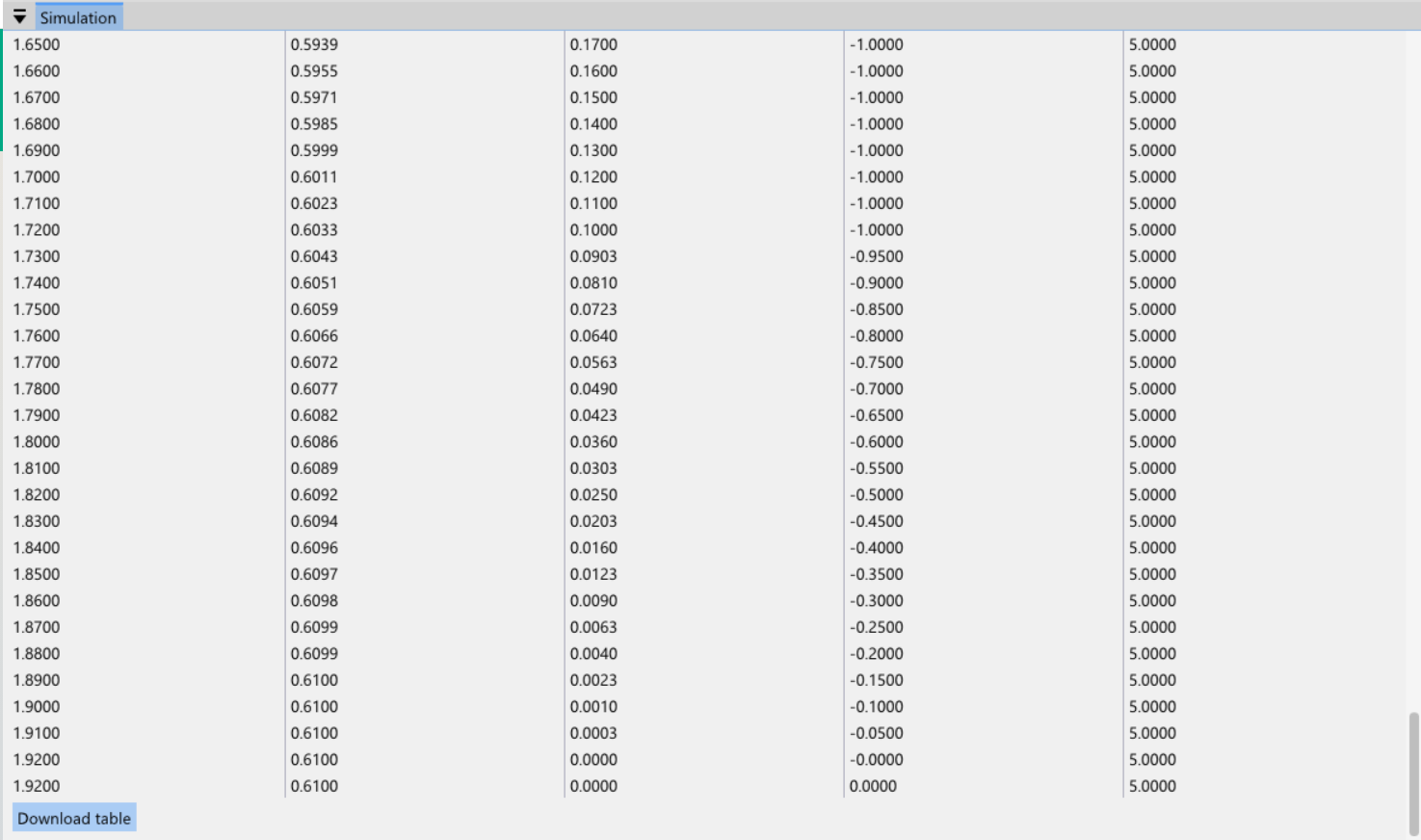
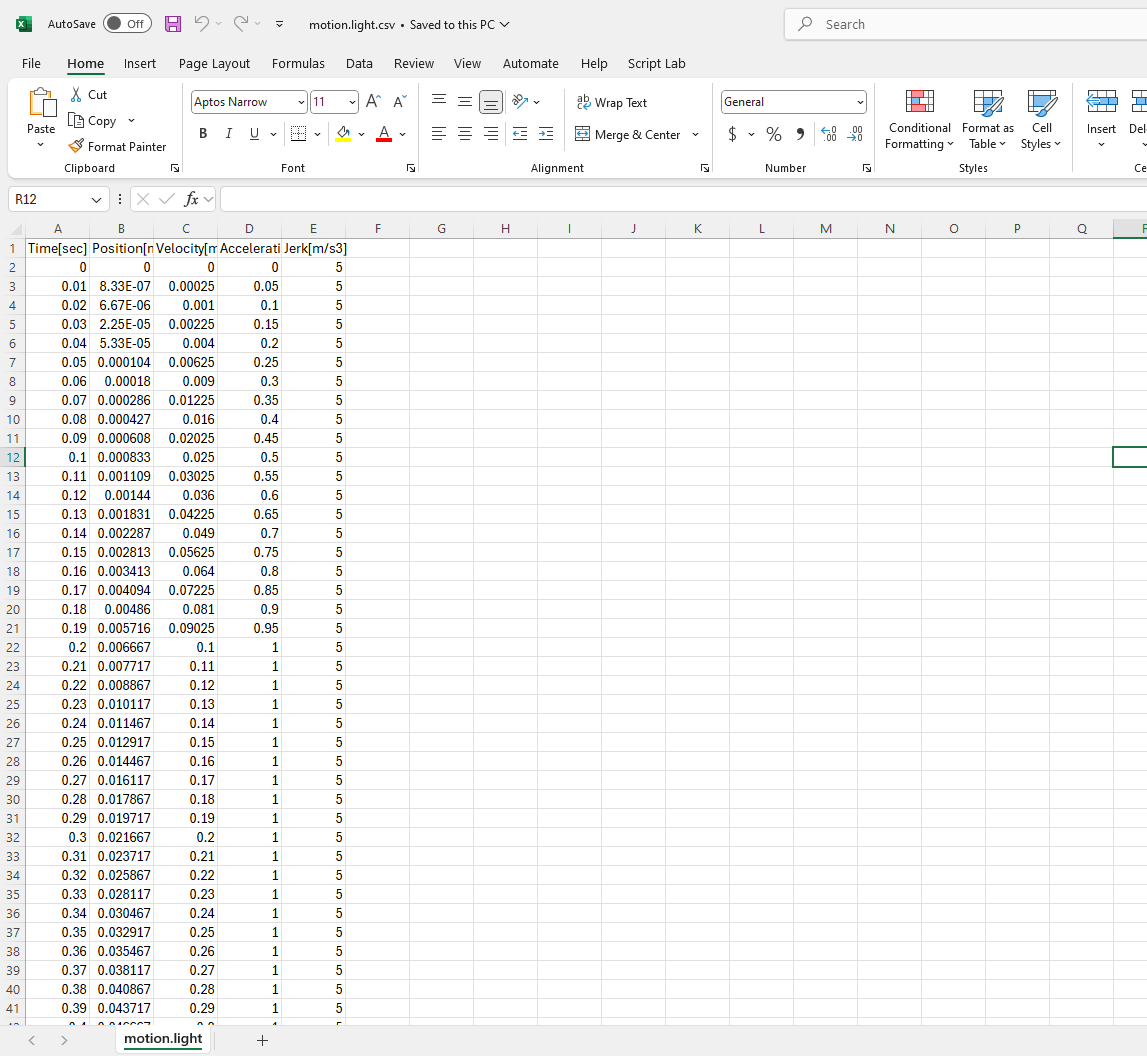
You can export the table in a csv format by clicking on Dowload table
Then, simply choose where to save your table in the file explorer.
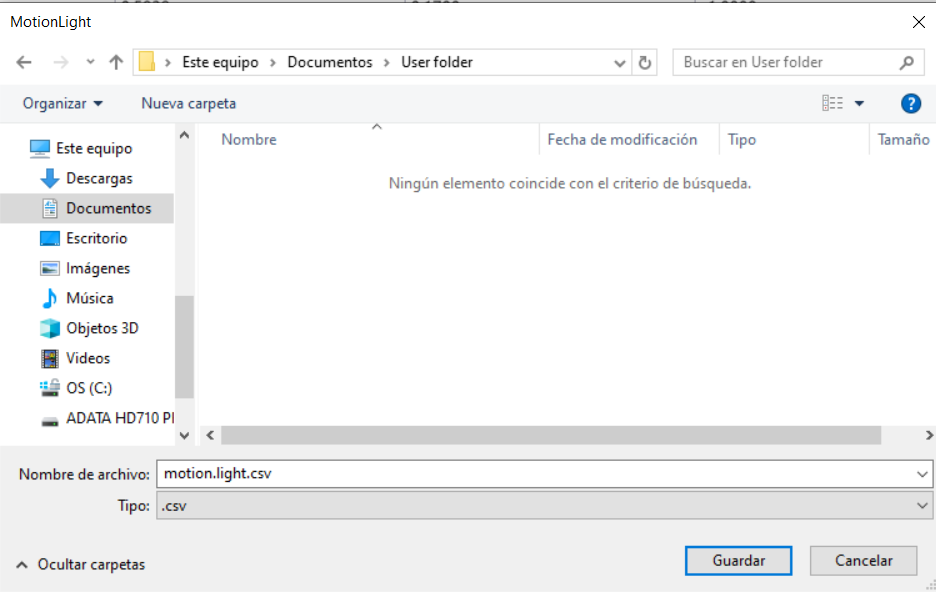
That is it! You can now open the table in your favorite CSV file editor like Excel, Google sheets, etc.
The motion.light file
motion.light file is a .txt file that contains the profile parameters and the calculated velocities throughout the trajectory.
Throught this file, programming languages can access all the calculated velocities and use that information to execute the motion profile.
Also, having a motion.light file allows you to save different motion profiles on your computer and open them later in MotionLight.
Downloading motion.light file
Once you simulation is complete, click on File, then select Download.
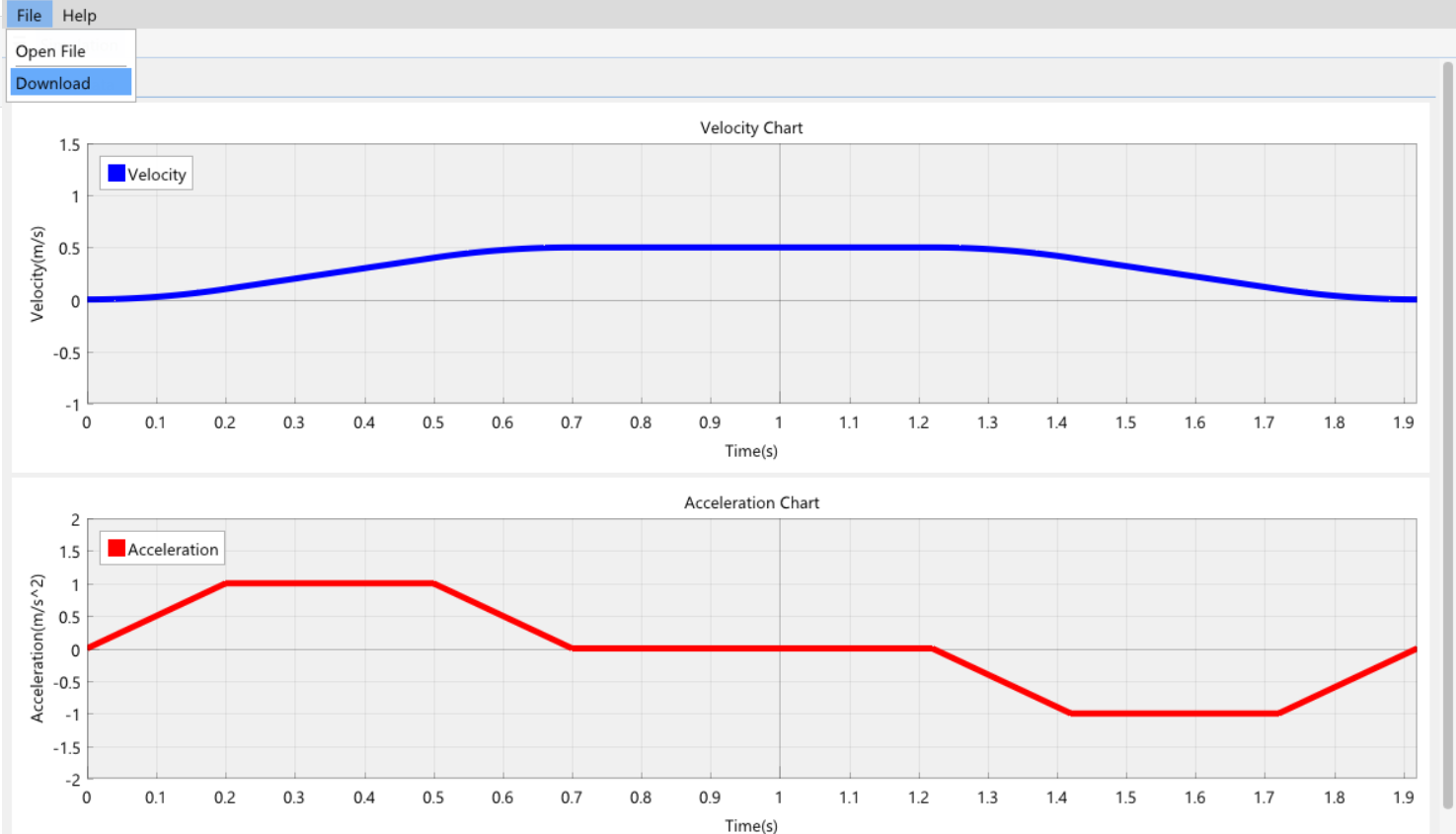
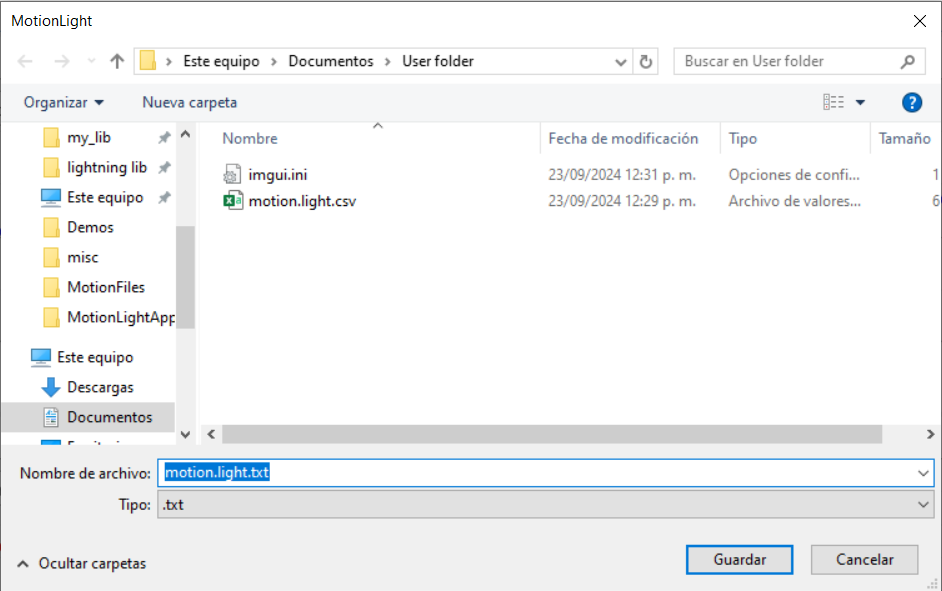
Choose where to save the motion.light file.
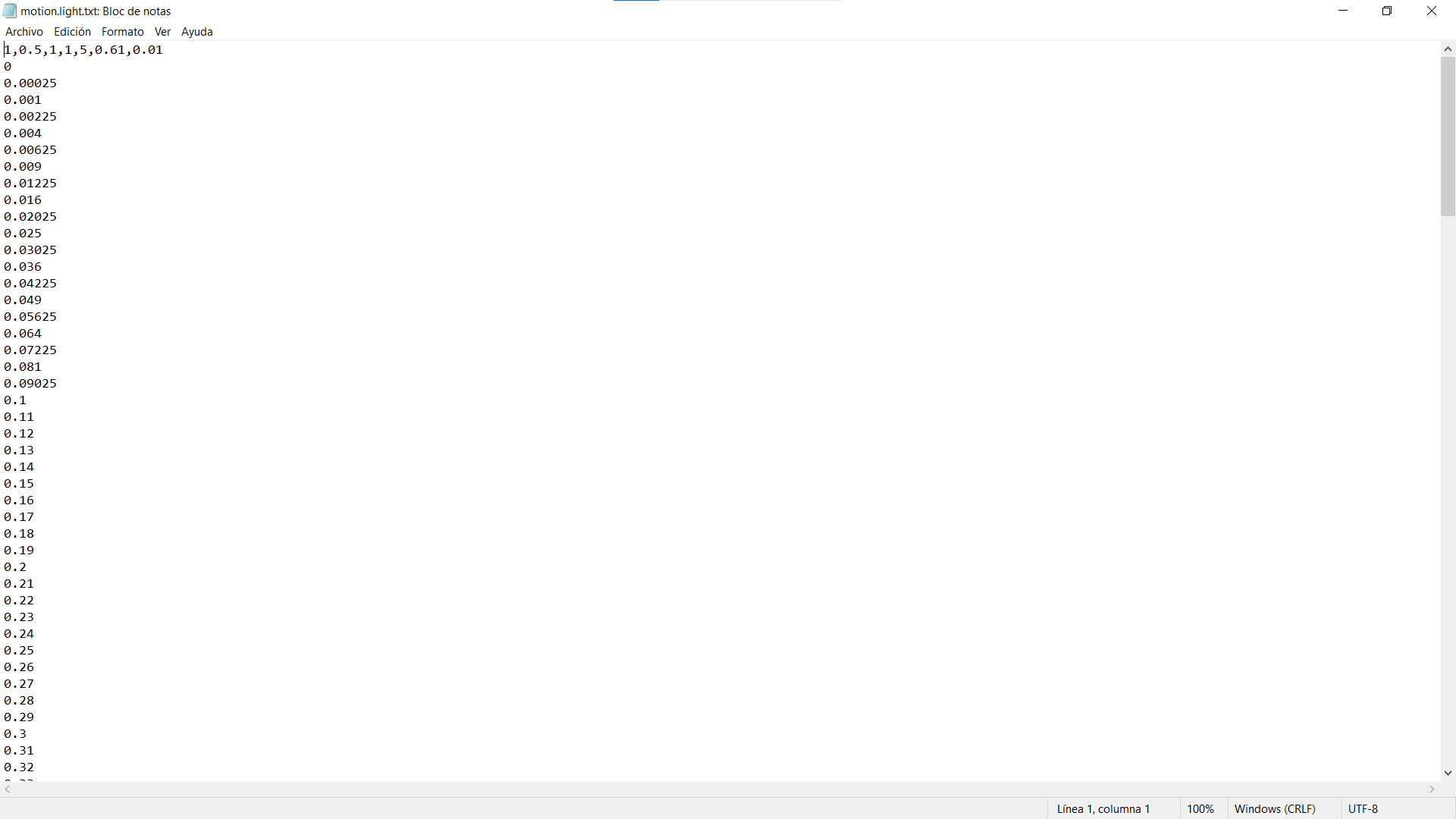
A motion.light file looks like:
The first line are motion profile´s parameters: Profiler(Trapezoidal= 0, Scurve = 1),Velocity, Acceleration, Desacceleration, Jerk, Distance, SampleTime. The other lines are the velocity along the profiler.
Opening a motion.light file in MotionLight
You may have several saved motion.light files. You can open these files in MotionLight, allowing you to interact with the profiles and make changes.
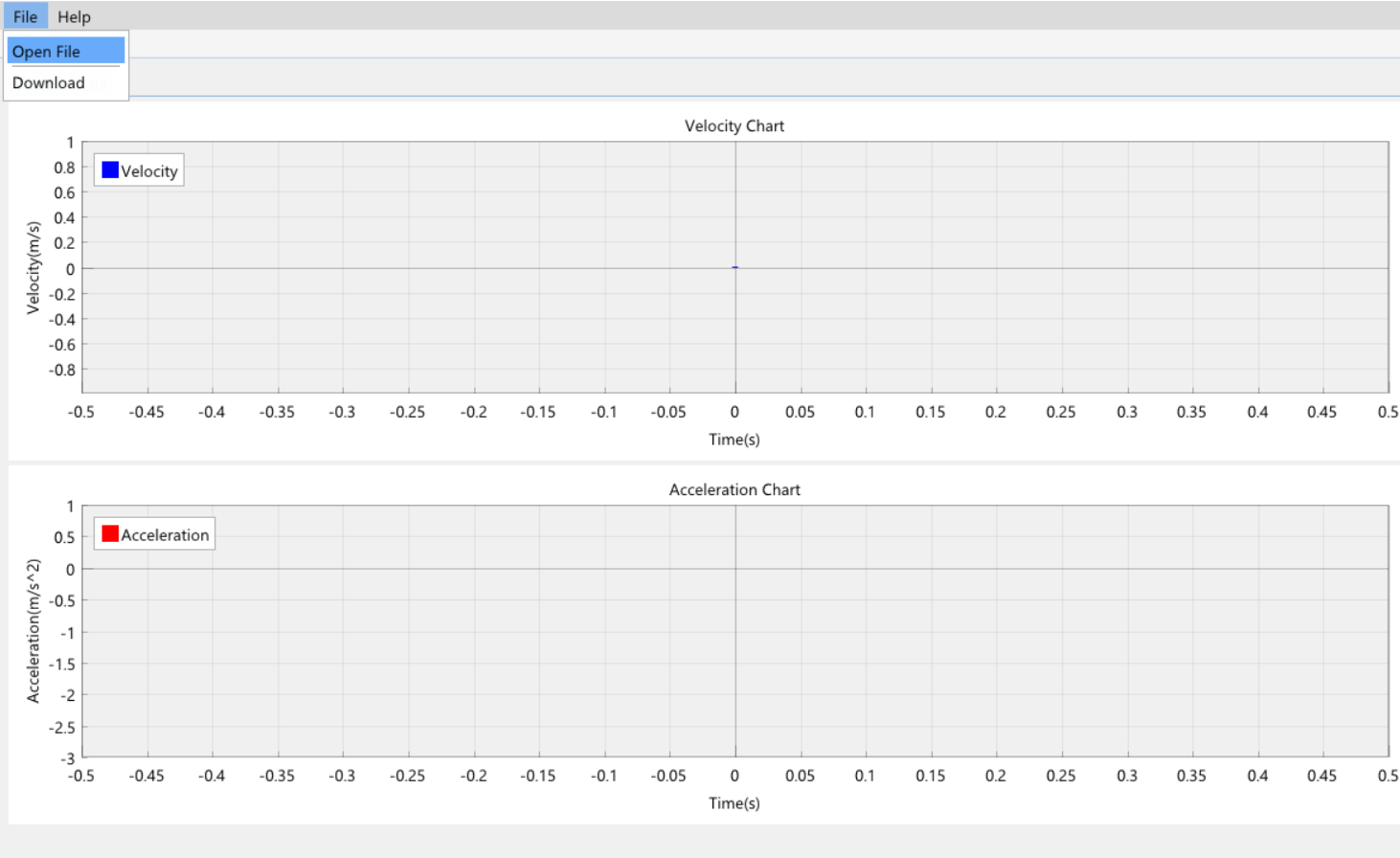
To open a file, click on File -> Open File.
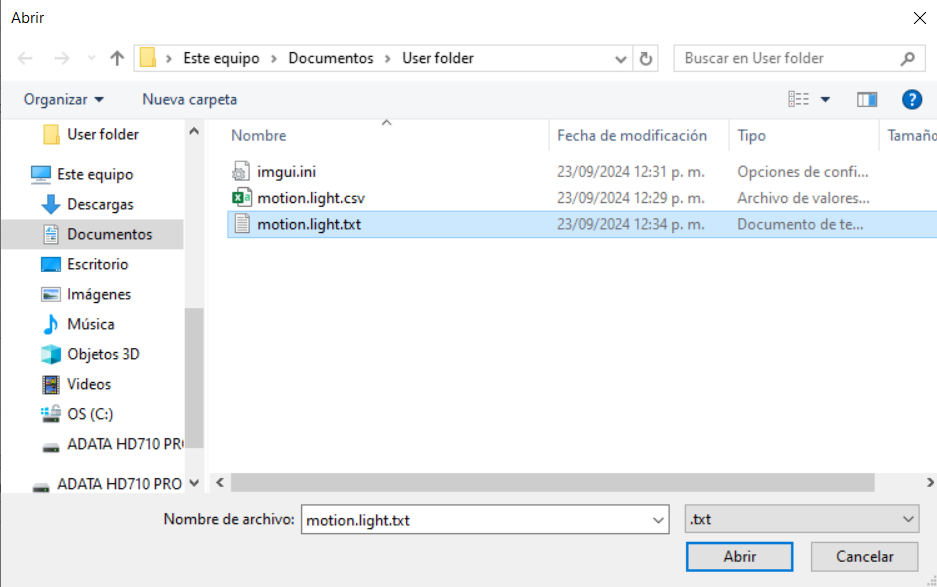
The file explorer will open. Select the motion.light.txt file you want to open.
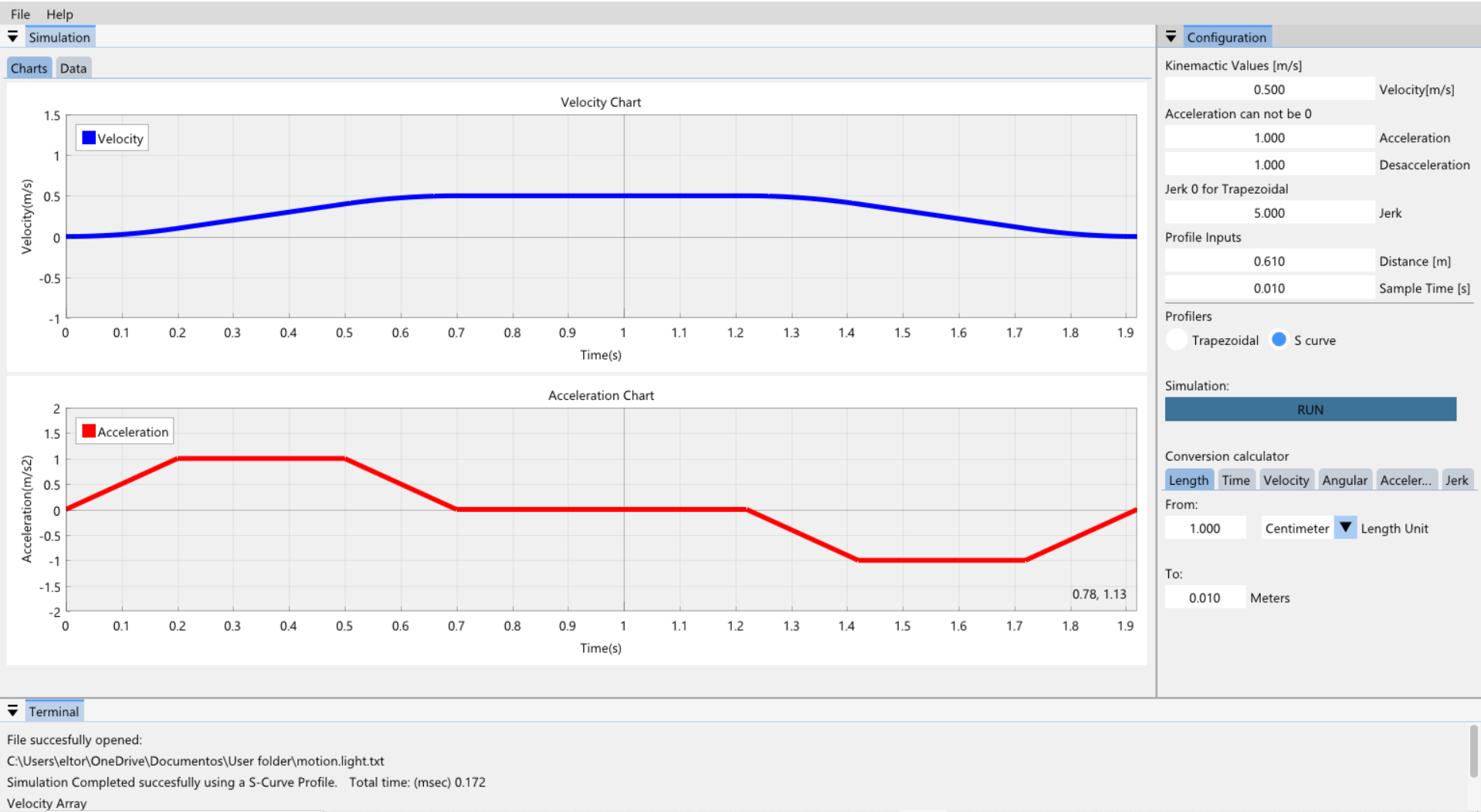
All the information of that particullar profile will appear in MotionLight.
Terminal
MotionLight has a terminal to display important information about simulations.

Once you run a simulation, the terminal will display all the velocities in vector format.
This is useful because allows you to copy the velocities to your clipboard. You can paste them into many programming languages without needing to handle motion.light files.
For example, in c++ you can paste all the values into a std::vector.
std::vector<float> profile_velocities{0.0000,0.0002,0.0010,0.0022,0.0040,0.0062,0.0090,0.0122,0.0160,0.0202,
0.0250,0.0302,0.0360,0.0422,0.0490,0.0562,0.0640,0.0723,0.0810,0.0903,0.1000,0.1100,0.1200,0.1300,0.1400,
0.1500,0.1600,0.1700,0.1800,0.1900,0.2000,0.2100,0.2200,0.2300,0.2400,0.2500,0.2600,0.2700,0.2800,0.2900,
0.3000,0.3100,0.3200,0.3300,0.3400,0.3500,0.3600,0.3700,0.3800,0.3900,0.4000,0.4097,0.4190,0.4277,0.4360,
0.4437,0.4510,0.4577,0.4640,0.4697,0.4750,0.4797,0.4840,0.4877,0.4910,0.4937,0.4960,0.4977,0.4990,0.4998,
0.5000,0.5000,0.5000,0.5000,0.5000,0.5000,0.5000,0.5000,0.5000,0.5000,0.5000,0.5000,0.5000,0.5000,0.5000,
0.5000,0.5000,0.5000,0.5000,0.5000,0.5000,0.5000,0.5000,0.5000,0.5000,0.5000,0.5000,0.5000,0.5000,0.5000,
0.5000,0.5000,0.5000,0.5000,0.5000,0.5000,0.5000,0.5000,0.5000,0.5000,0.5000,0.5000,0.5000,0.5000,0.5000,
0.5000,0.5000,0.5000,0.5000,0.5000,0.5000,0.5000,0.5000,0.4998,0.4990,0.4978,0.4960,0.4938,0.4910,0.4878,
0.4840,0.4798,0.4750,0.4698,0.4640,0.4578,0.4510,0.4438,0.4360,0.4278,0.4190,0.4098,0.4000,0.3900,0.3800,
0.3700,0.3600,0.3500,0.3400,0.3300,0.3200,0.3100,0.3000,0.2900,0.2800,0.2700,0.2600,0.2500,0.2400,0.2300,
0.2200,0.2100,0.2000,0.1900,0.1800,0.1700,0.1600,0.1500,0.1400,0.1300,0.1200,0.1100,0.1000,0.0903,0.0810,
0.0723,0.0640,0.0563,0.0490,0.0423,0.0360,0.0303,0.0250,0.0203,0.0160,0.0123,0.0090,0.0063,0.0040,0.0023,
0.0010,0.0003,0.0000,0.0000}
Congratulations 💪
You finished the MotionLight Tutorial. Now you are ready to use MotionLight.